


Did you get an error when trying to upload a file to the site?
Sometimes, when trying to upload a template or plugin, you may encounter a file upload limit, or in technical terms: upload_max_filesize.
In the WordPress admin interface, you will see the message: The file you tried to upload exceeds the size specified in upload_max_filesize in the php.ini file.
Or a message like this: The uploaded file exceeds the maximum file size in upload_max_filesize set in the php.ini file.
Or as shown in the image below:

cPanel users:
Log in to your cPanel account.
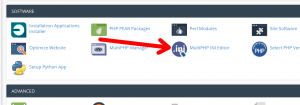
Under the "Software" heading, click on MultiPHP INI Editor.
Select the domain or subdomain name on the next screen:
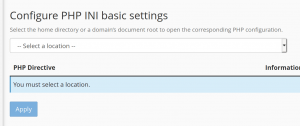
You can then increase the following variables:
- upload_max_filesize
- post_max_size (this size should be greater than or equal to upload_max_filesize)
- memory_limit (this should be greater than or equal to post_max_size)
Click "Apply."
Repeat this for all sites where you need to upload larger files. Note that the maximum size for these variables is 2GB.
On servers without cPanel (DTC, LAMP, etc.)
Open Notepad (or Notepad++, or any text editor you have) and write the following lines:
post_max_size=20M
upload_max_filesize=20M

Please note! Make sure that the value of post_max_size is greater than or equal to upload_max_filesize, otherwise it will not work.
After writing the above lines and editing the variables according to your needs, save the file as php.ini.

Upload the file to the site. To do this, you need FTP access. For a handy guide explaining how to connect to the site via FTP, click here.
After connecting to FTP, access the wp-admin/ directory under subdomains.aufs/www/html/ and upload the file there.
Then, try uploading the file to WordPress again.
Good luck!